On a Team plan, everyone in the workspace works from the same People page: every client assessment your team creates is visible to all members, and any diary shared with the team can be opened by all members. The plan includes 4 seats, and extra seats are $2/month each.
Invite a team member
Only the workspace owner and admins can invite members.
- Open Settings and find the Team members section.
- Select Invite member.
- Enter their email address. They must already have a Foodzone account — ask them to sign up first if they don't.
- Choose a role and select Send invite.
They receive an email invitation and see it as a banner in Foodzone — see Accept or decline an invitation. While it is pending, the invitation is listed in Team members with a Cancel button.
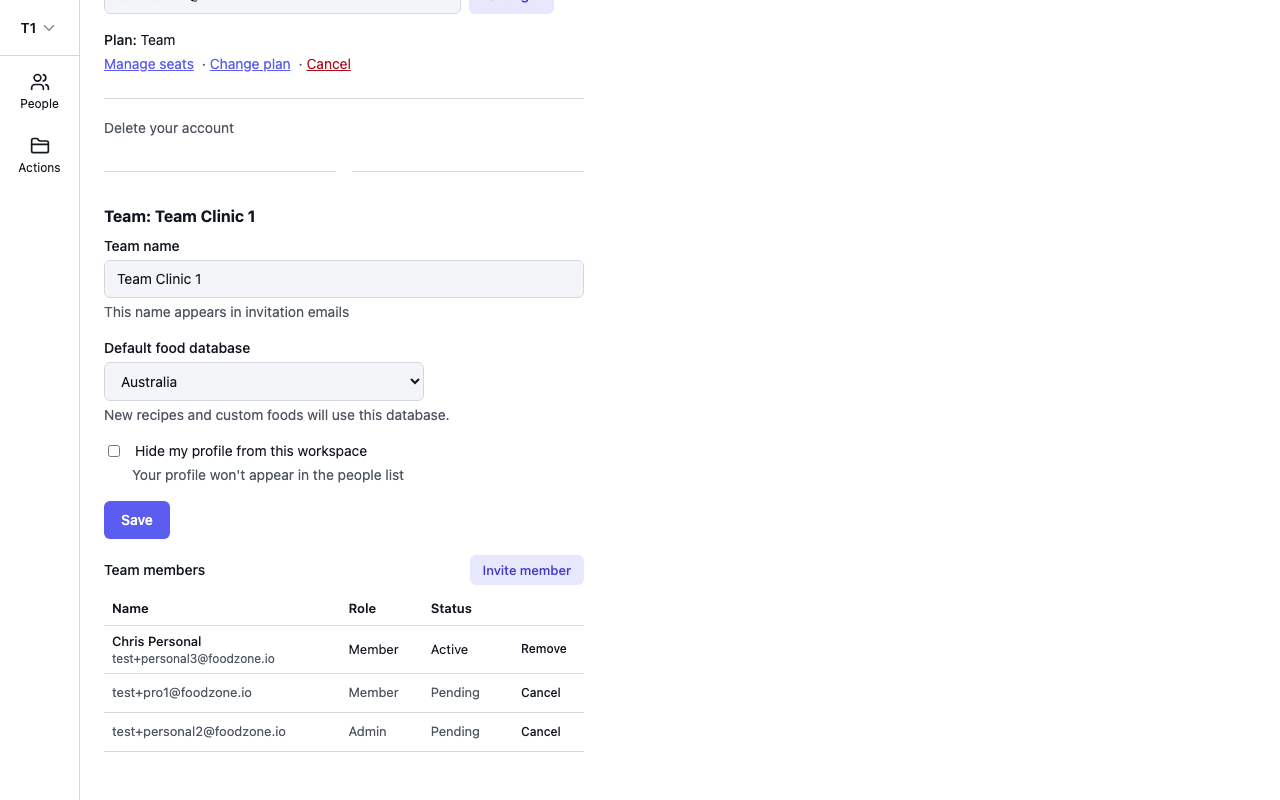
Roles
- Member — works with the team's clients: adding assessments, diary entries and reports.
- Admin — everything a member can do, plus inviting and removing team members.
What team members see
- People — all of the team's client assessments, with search across them.
- Diaries shared with the team — when a Foodzone user shares their diary with your team's account email, every member can open it once the invitation is accepted. These are listed in Settings under Diaries shared with team.
Remove a team member
In Settings, under Team members, select Remove next to their name and confirm. They lose access to the team and its clients immediately. Their own Foodzone account is not affected.