Edit an entry
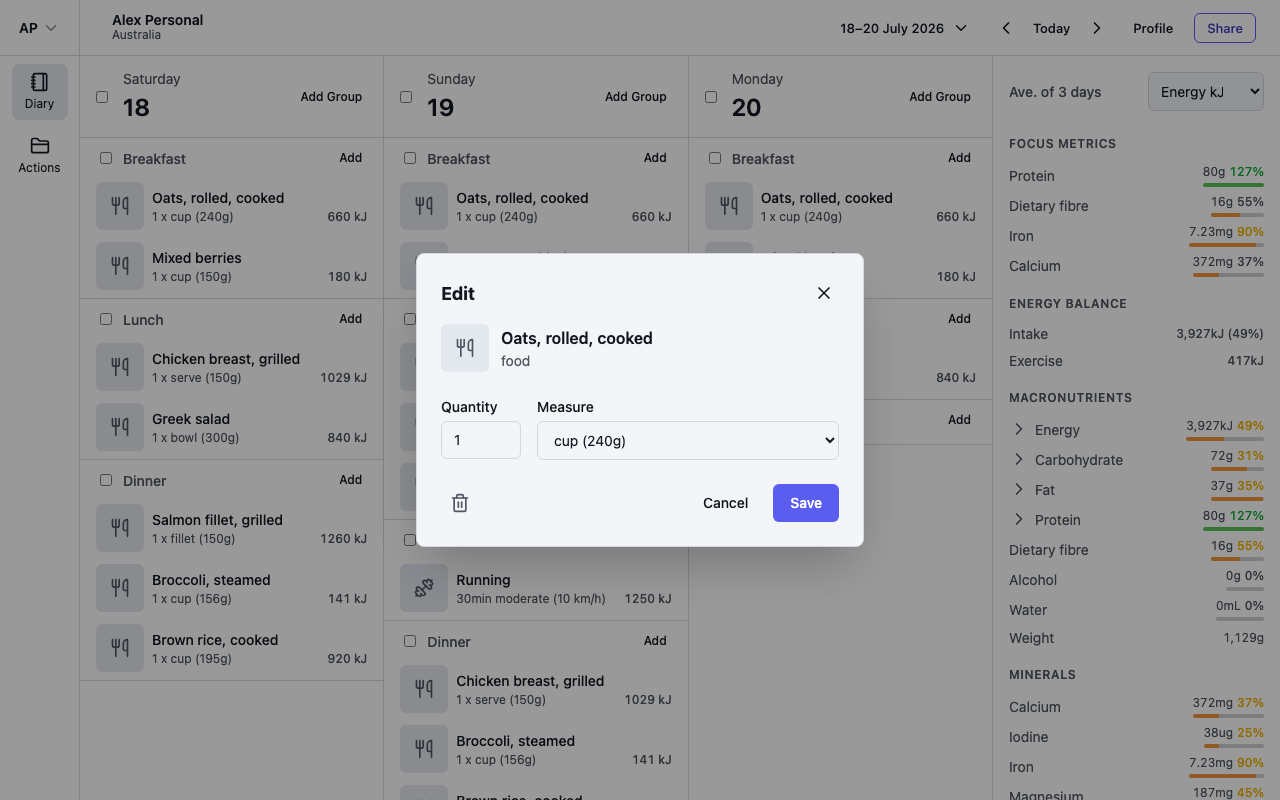
Select an entry's name to open the Edit dialog. Change the Quantity and Measure (or Duration (min) and Intensity for an exercise) and select Save. The trash icon in the same dialog deletes the entry.
Selecting a note opens the same text box you wrote it in. Edit the text and select Save, or use the trash icon to delete it.
Move entries by dragging
Use the grip handle on the left of an entry to drag it to a different meal group, or across to another day on screen. The diary saves the move as soon as you drop.
Select several entries
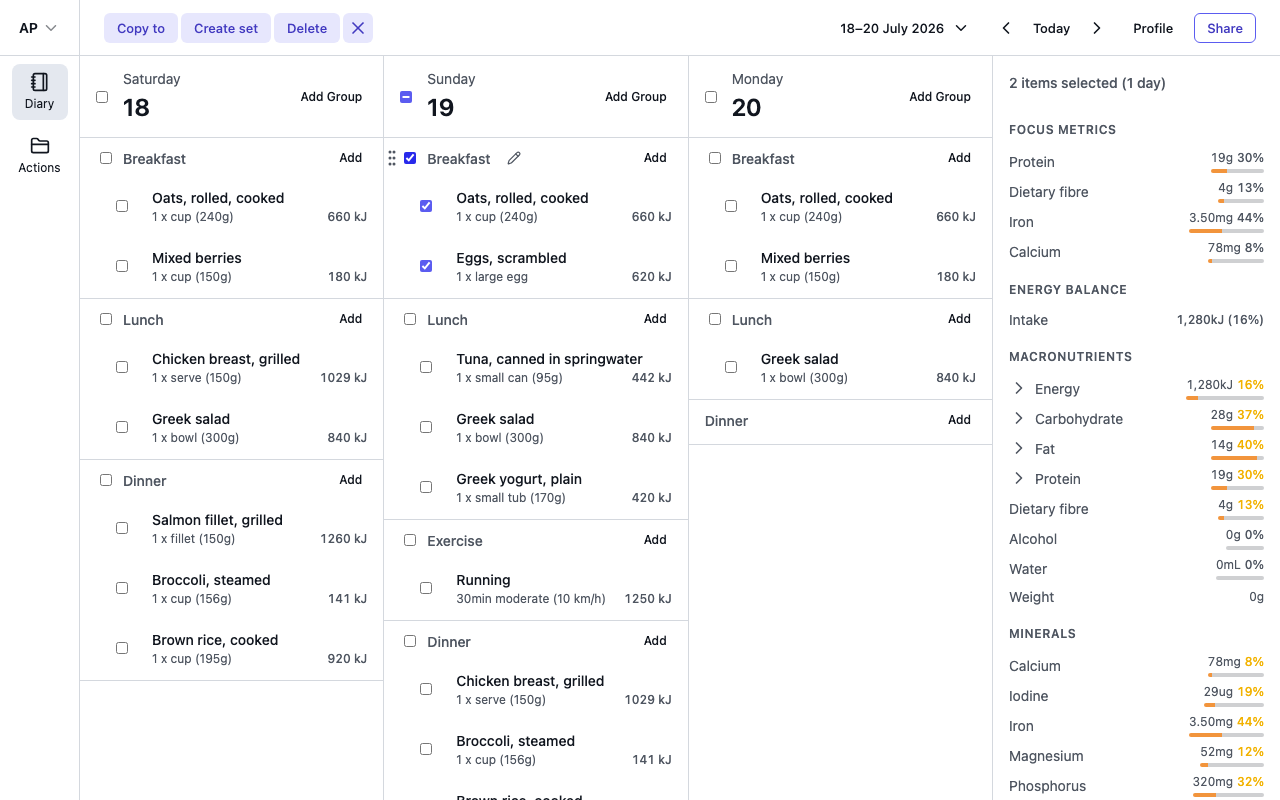
Every entry has a checkbox, and each meal group and day has a select-all checkbox in its header. While entries are selected, the header shows actions for the whole selection:
- Copy to — opens the Copy to date dialog. Pick a date and the entries are copied there, into groups with the same names.
- Create set — saves the selection as a reusable set, so you can add the whole combination again in one step. Give it a name and select Create. Sets are built from foods and recipes, so a selection containing a note cannot be saved as one.
- Delete — removes the selected entries after a confirmation. This cannot be undone.
Notes take part in all of this: drag them between groups and days, copy them to another date, and delete them alongside other entries. A copied note keeps its text.
Select the X to clear the selection. While entries are selected, the summary panel also switches to totals for just those entries — see Understand your daily summary.
A note on shared diaries
If someone has shared a diary with you as a viewer, you can read it and select entries to see their totals, but editing, moving and deleting are only available to people with write access.