Someone has invited you to their practice's team on Foodzone. It's free for you: the team's plan covers your work in the team.
1. Open your invitation
Select Accept invitation in the email, or open the link the person who invited you sent.
If you don't have a Foodzone account yet, you make one now:
- The Create account page opens with your email address filled in. Enter your name and select Create account. Keep the email address as it is: the invitation is for that address.
- Type the 6-digit code we email you.
- Foodzone asks Join and the team's name. Select Join team.
You land in the team.
If you already have an account, even an old one whose plan has ended, sign in with the email address the invitation was sent to. A banner at the top of the page names the team. Select Accept.
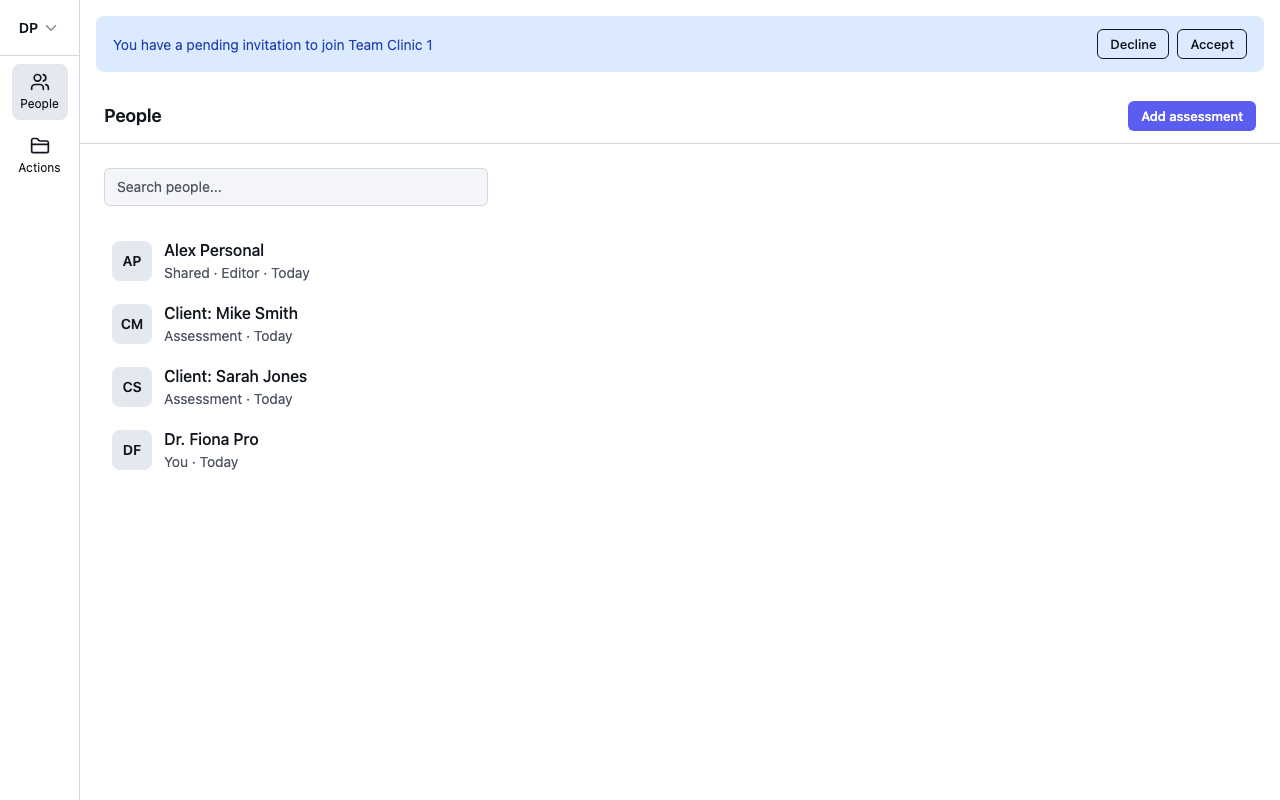
Don't start a Professional or Team trial to join someone else's team. A trial makes a second practice of your own, and when it ends Foodzone keeps telling you your plan has ended.
2. Open the team
If you accepted from the banner, Foodzone confirms it. Select Go to and the team's name.
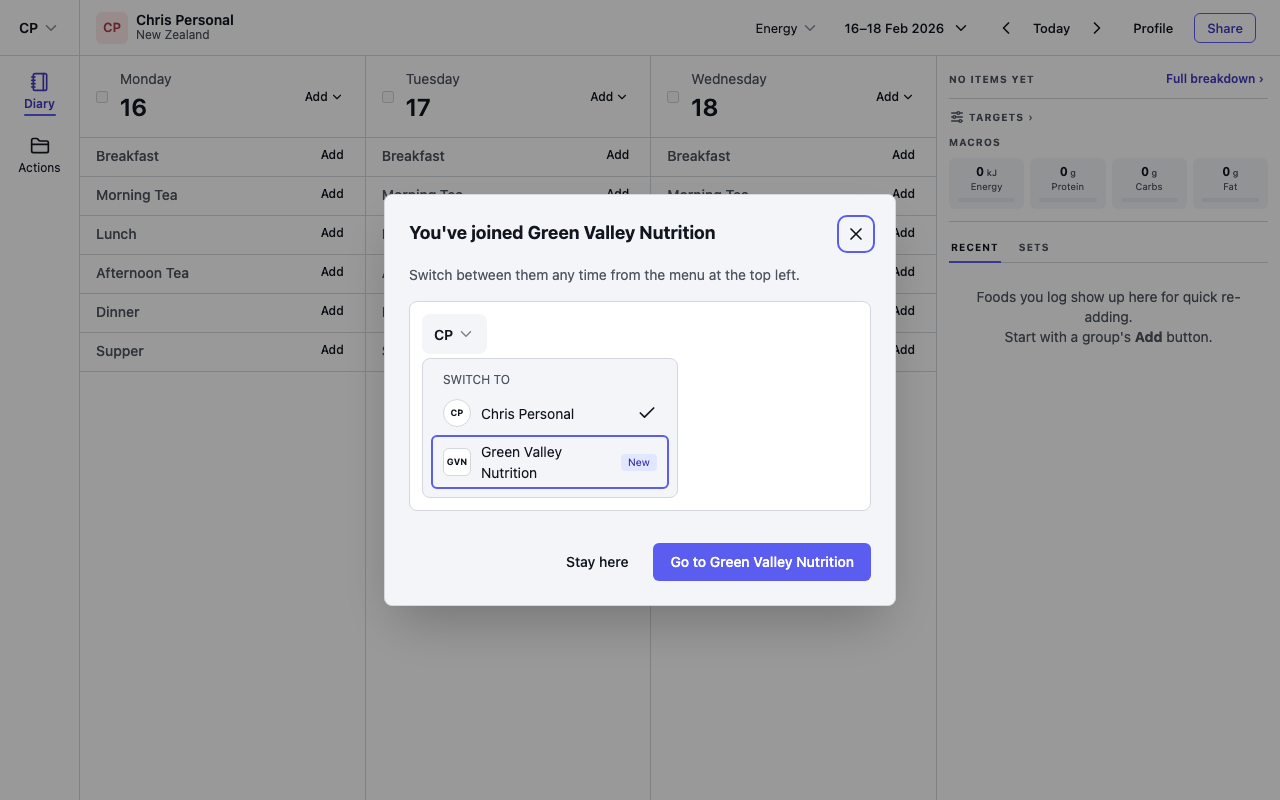
You now have two places to work, and you choose between them from the menu at the top left:
- Your name — your own account and your own diary.
- The team's name — the team's People page, with every client and assessment the team works on.
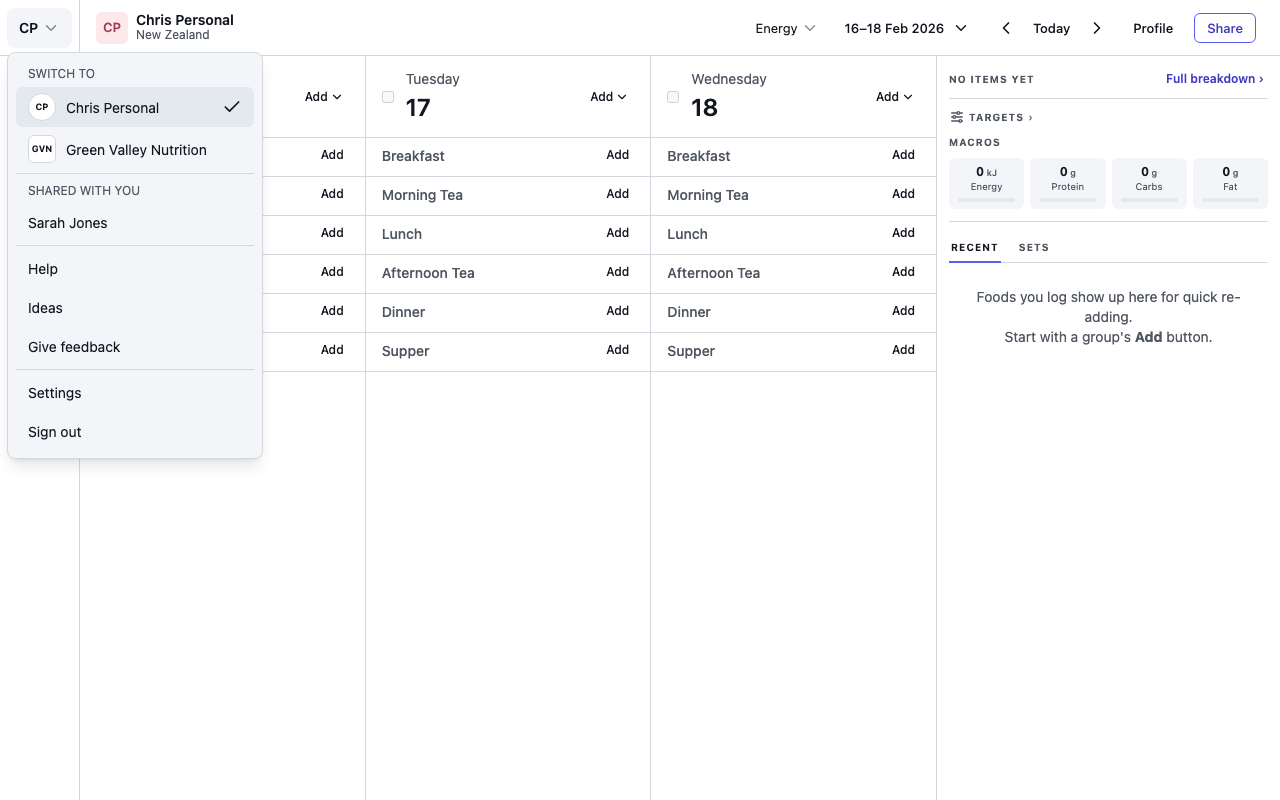
The tick shows where you are now. The letters on the menu button change too: your initials in your own account, the team's in the team.
Check this before you enter anything. Work for the team belongs in the team, not in your own account.
3. Start working
In the team, open People and select Add assessment to enter food for someone. See Assessments and shared diaries.
If something isn't right
- The email didn't arrive — you don't need it. Go to foodzone.io and make an account with the email address you were invited at; Foodzone asks you to join straight after the code. Or ask the person who invited you to copy the invitation link and send it to you.
- You signed up and were asked "How will you use Foodzone?" — the invitation went to a different email address than the one you used. Choose I'm joining my practice's team. Foodzone shows the address your account uses: ask the person who invited you to send the invitation to that address, then select Check again.
- "This invitation is for another email" — you opened the link while signed in to a different account. Select Sign in with another email and use the address it names.
- No banner after signing in — the invitation went to a different email address, or hasn't been sent yet. Ask the person who invited you which address they used.
- "You need a seat" — the team has more members than seats. Ask the team owner to add a seat.
- Leaving a team — open Settings in your own account, find Teams you belong to, and select Leave.