Foodzone's reports are for reading. For your own analysis, use Data export: a CSV file with one row per diary entry and one column per nutrient. It is available on Professional and Team plans.
Export one participant
- Open the participant's diary from People.
- Select Report, then the Data export tab.
- Set the two dates to cover the days recorded. The range can be up to 1 year.
- Leave Food ticked. Tick Exercise, Measurements or Notes only if your analysis uses them.
- Select Export CSV.
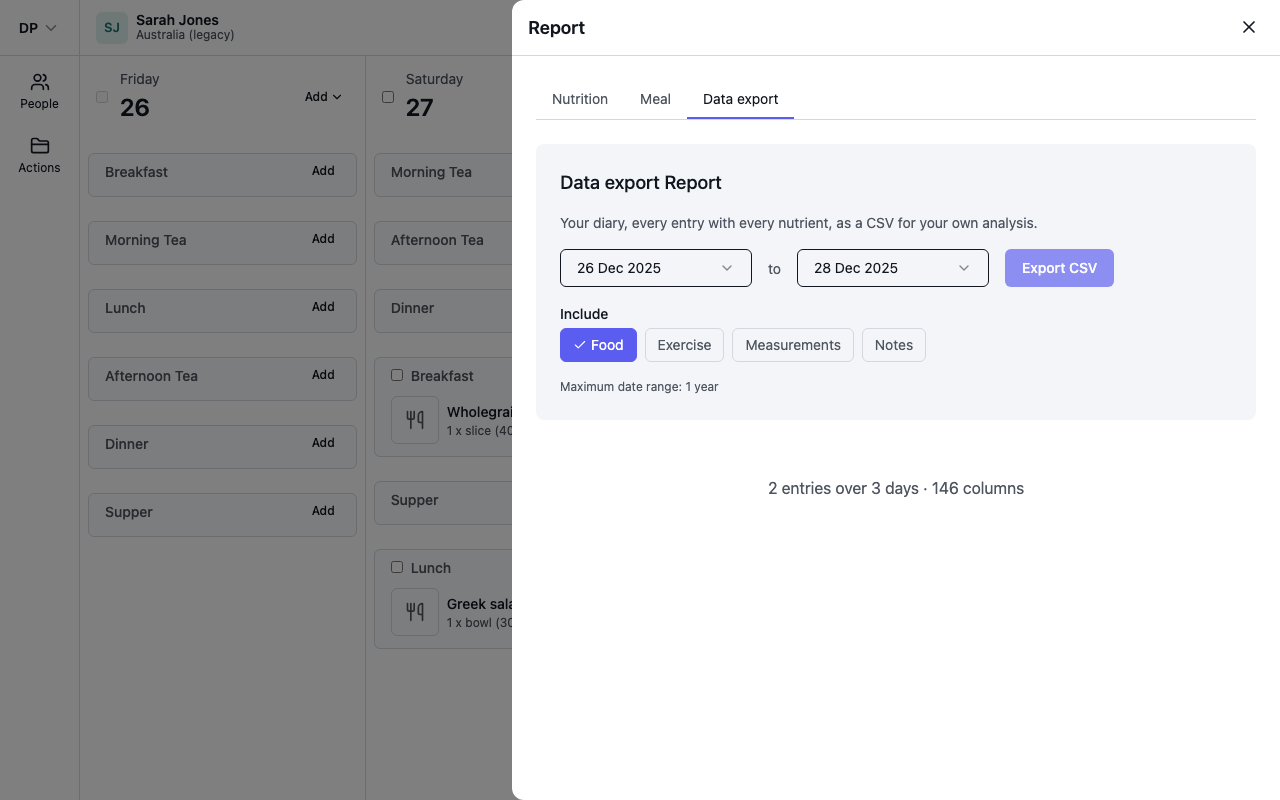
The file is named after the participant, what you ticked and the dates. Every column is described in Export your data as a CSV.
One file per participant
Each export covers one diary, so a study with 40 participants is 40 files. To combine them:
- Name participants by study code, so each file name carries the code.
- Stack the files in your statistics package and take the participant code from the file name. Files from the same food database have the same nutrient columns. The one exception is an extra column for a nutrient that only a supplement or product label carries, which appears only in files where such a food was logged, so match columns by name when you stack.
What to know before you analyse
- Rows are entries, not days. There are no total rows. Sum by date for daily intake, then average across a participant's days.
- A recipe is one row, with the nutrients for the amount eaten. Its ingredients are not listed.
- A food with no value for a nutrient shows
0, not a blank. Check the source database's documentation before treating a zero as a measured zero. - Energy is in the diary's own unit, kJ or kcal, shown in the column heading. Set every participant to the same unit before exporting.
- Days with nothing logged don't appear. Count recorded days from your study records, not from the file.
Reports for a quick check
The nutrition report shows one participant's average intake against their nutrient reference values, which is a fast way to spot a day entered twice or a quantity typed wrong before you export.