Your email address is how you sign in — Foodzone emails you a code instead of asking for a password — so changing it includes a verification step from the new inbox. You can do it yourself from the website.
Change your email
- Open Settings.
- Under Email & plan, type the new address in the Email field and select Change.
- A message appears above the field: Pending change to your new address — Check your inbox.
- In the new inbox, open the email "Verify your new email address for Foodzone" and select Verify email. The link works for 24 hours.
- You land on an Email changed page. Select Sign in and sign in with the new address.
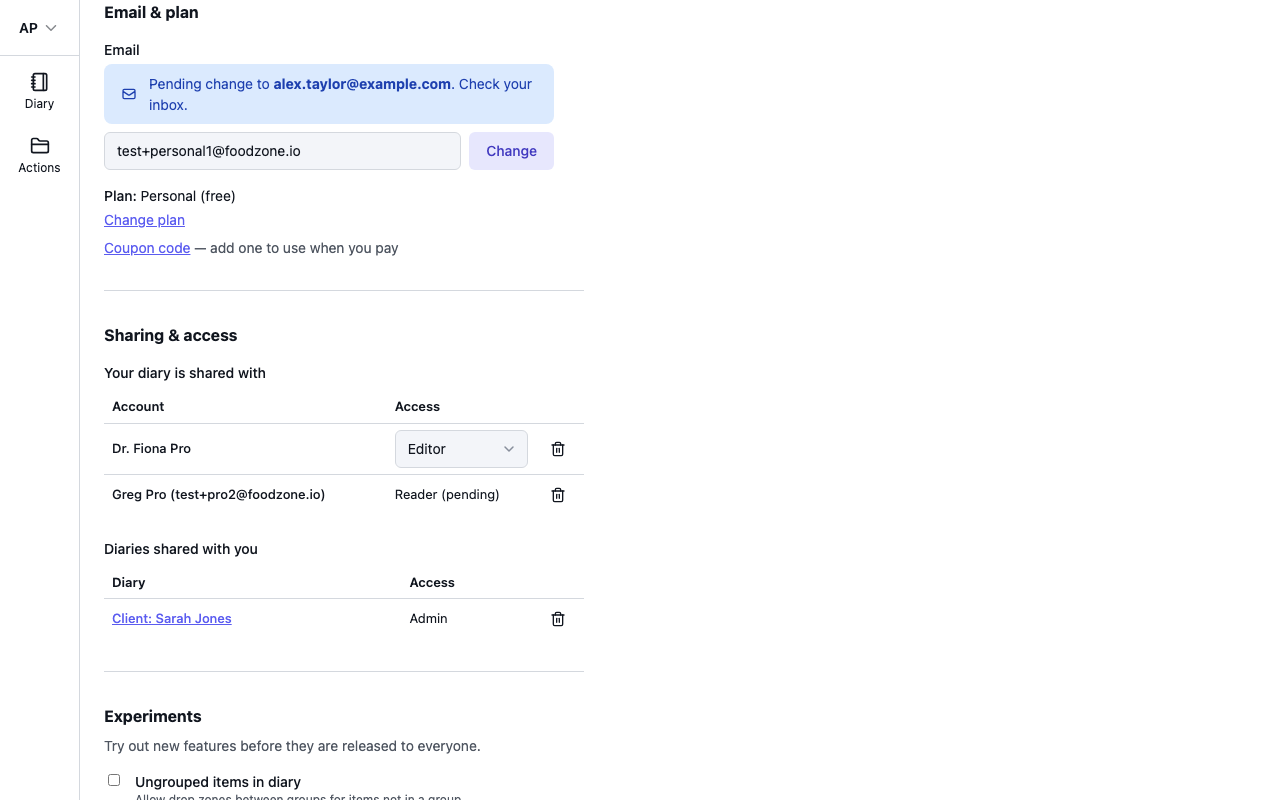
Until you verify, nothing changes: you keep signing in with your old address, and Settings keeps showing the pending message. Entering a different address replaces the pending request with a new one.
What happens when you verify
- Everywhere you were signed in — the website and the phone app — is signed out. Sign in again with the new address; the sign-in code goes to the new inbox.
- Your diary, profiles, custom foods, sharing and plan are untouched. If you pay for a plan, the email on your billing account is updated too.
- Your old address receives a confirmation email, "Your Foodzone email has been changed", so you know the change went through.
If you did not request a change
The old address receives an email, "Email change requested for your Foodzone account", the moment a change is requested. If that was not you, select Cancel email change in that email straight away. The request is cancelled and your address stays as it is. If a change has already gone through that you did not make, contact us.
The link has expired
Verification links last 24 hours and work once. If you see Link expired, go back to Settings and request the change again.
On your phone
The app shows your email at the top of the You tab, but it cannot change it. Use the website.