Create a custom food for anything the food databases don't cover — a packaged product, a supplement, or your own staple. Once saved it works like any database food: search it in the diary, use it as a recipe ingredient, or put it in a set.
On the Actions page select Add action, choose Food and the food database, then Create.
Name and describe it
Give the food a Name (this is what you'll search for in the diary) and an optional Description.
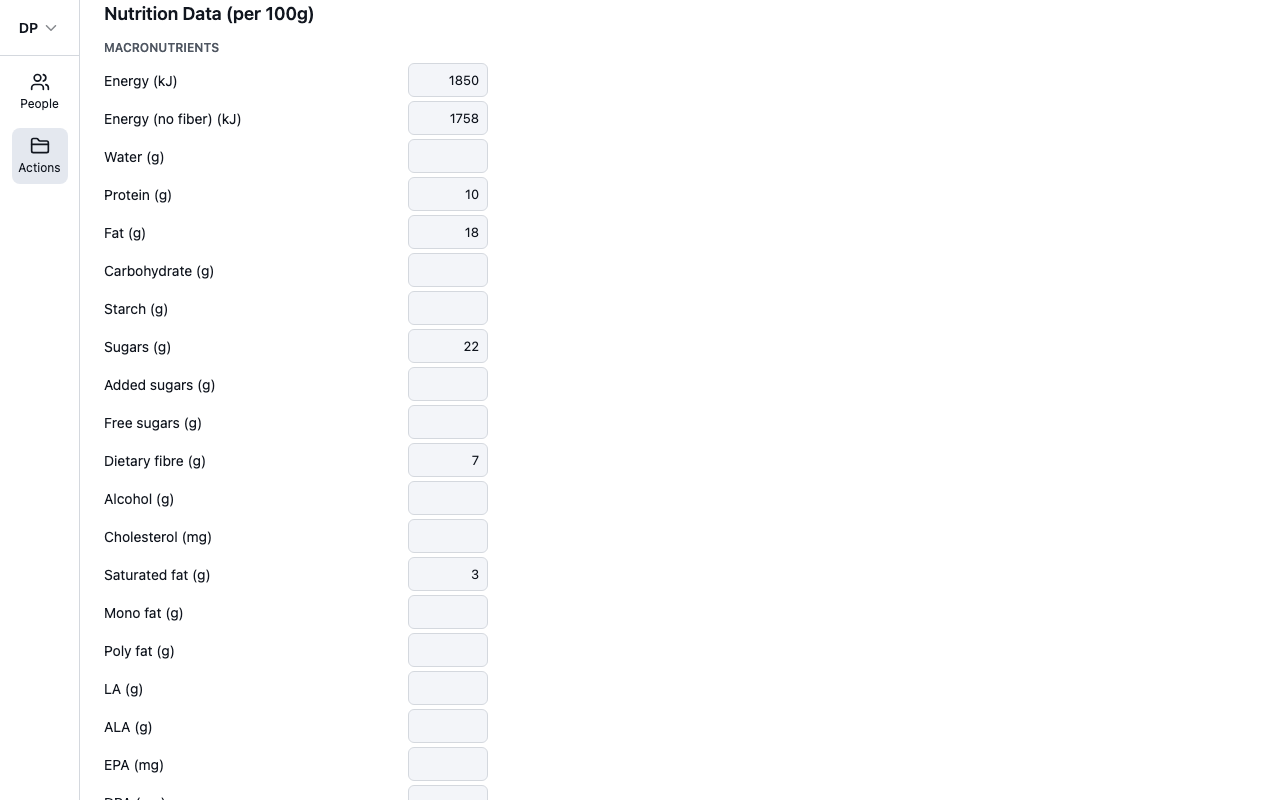
Enter the nutrition data
All values are entered per 100 g — take them straight from a nutrition information panel. The fields on offer depend on the food database the food belongs to, grouped into macronutrients, minerals and vitamins, with energy in kilojoules. Fill in what you know; anything left blank is simply not counted.
In databases with Food Groups, enter serves for the sub-groups and the parent totals are calculated automatically.
Add measures
Measures are the serving options you'll pick from when logging the food — grams always work, and you can add your own household measures:
- Next to Measures, select Add.
- Enter a name and the weight in grams of one measure — for example "cup" and "60" for a 60 g cup.
- Select Add. Use the pencil and bin icons on a measure to edit or remove it.
Save
Select Save when you're done. If a value doesn't pass validation (for example a negative nutrient), the message appears below the field and nothing is saved until you fix it. Navigating away with unsaved changes asks whether to discard them.