A meal report lists everything a profile ate, meal by meal, with the nutrients you pick as columns. Reports are available on Professional and Team plans.
Open the report
- Open the diary you want to report on — on a Professional plan, select the person from the People page.
- Select Report in the diary header. The blade opens on the Nutrition tab.
- Select the Meal tab. The report generates automatically.
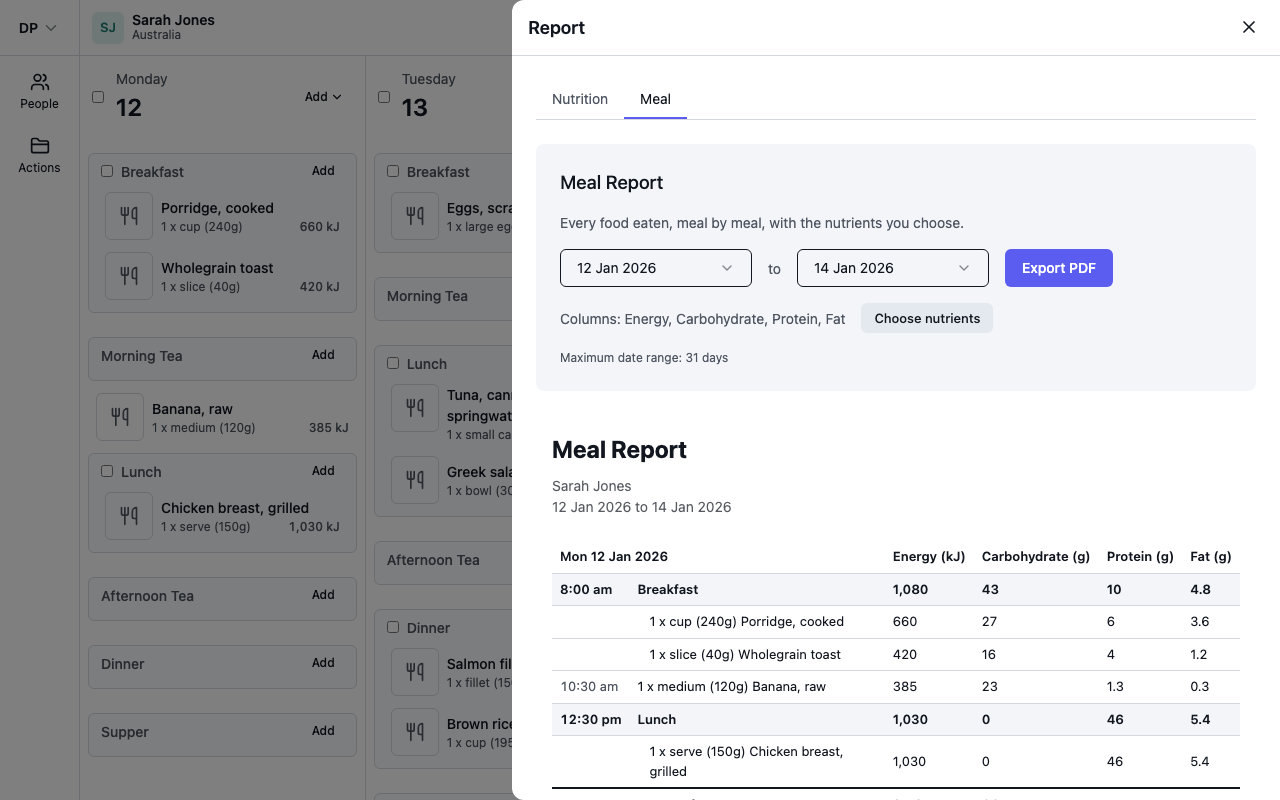
Pick a date range
Use the two date pickers above the report. The dates stay put when you switch between the Nutrition and Meal tabs, and the same date limit applies to both — see Run a nutrition report.
Choose nutrients
The report starts with Energy, Carbohydrate, Protein and Fat.
- Select Choose nutrients.
- Tick between 1 and 8 nutrients. Type in the filter box to find one.
- Select Done, or Reset to default to go back to the first four.
Your choice is remembered for your own account, so every person you open uses the same columns. If someone's food database does not hold one of your nutrients, that column is left out for them and your choice is kept for everyone else. If none of them are in that database, the report asks you to choose nutrients.
Reading the report
There is one table per day, in date order.
- A shaded row opens each meal, with the meal's totals.
- Under it, one row per food: the quantity, the measure and the food name. A recipe is one row.
- Day total adds up every food logged that day.
- Food logged outside a meal sits between the meals in time order, with no meal heading and no indent. It still counts towards the day total.
- Times are left out unless Show times on reports is ticked in the profile's Default diary groups; with it on, every row that has a time leads with it in a narrow first column, and a meal row shows the time of its first food.
- Days with no food are left out, and so is anything that is not food — notes, exercise, weights and the rest.
- Only foods logged against the profile's current food database appear, the same as in the diary.
To save the report, see Export a report as a PDF.