Barcode scanning is available on the Australia food database. If you use another database the scan button does not appear. See Choose a food database.
Scan a pack
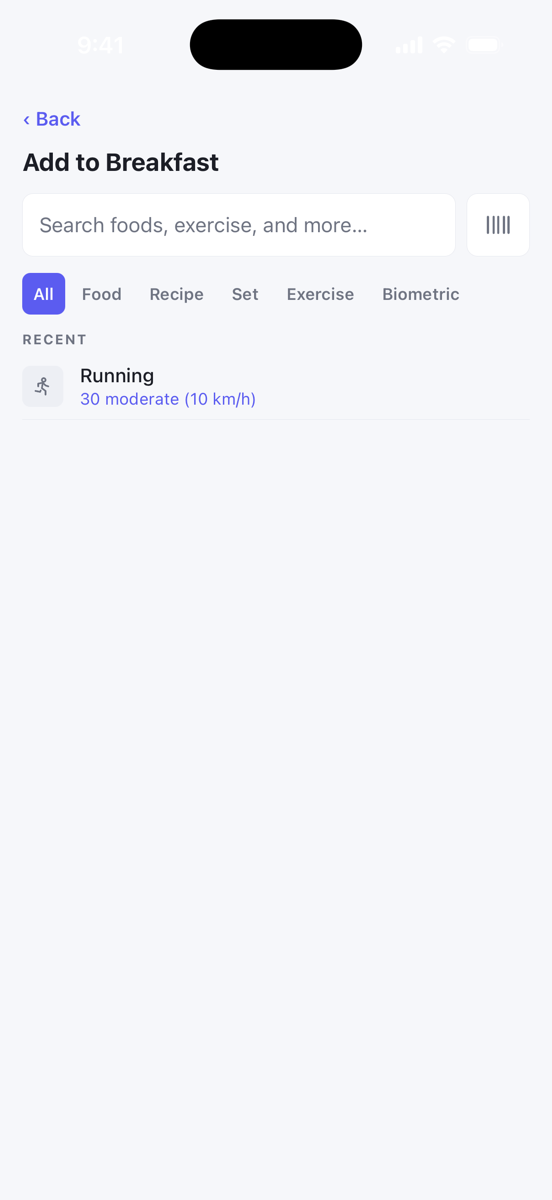
- Tap Add on a meal group, or the round + button and choose a group.
- Tap the barcode button to the right of the search box.
- The first time, allow camera access when your phone asks. Foodzone only uses the camera to scan barcodes and photograph foods you suggest.
- Point the camera at the barcode. There is no shutter button. The app reads it as soon as it is in view.
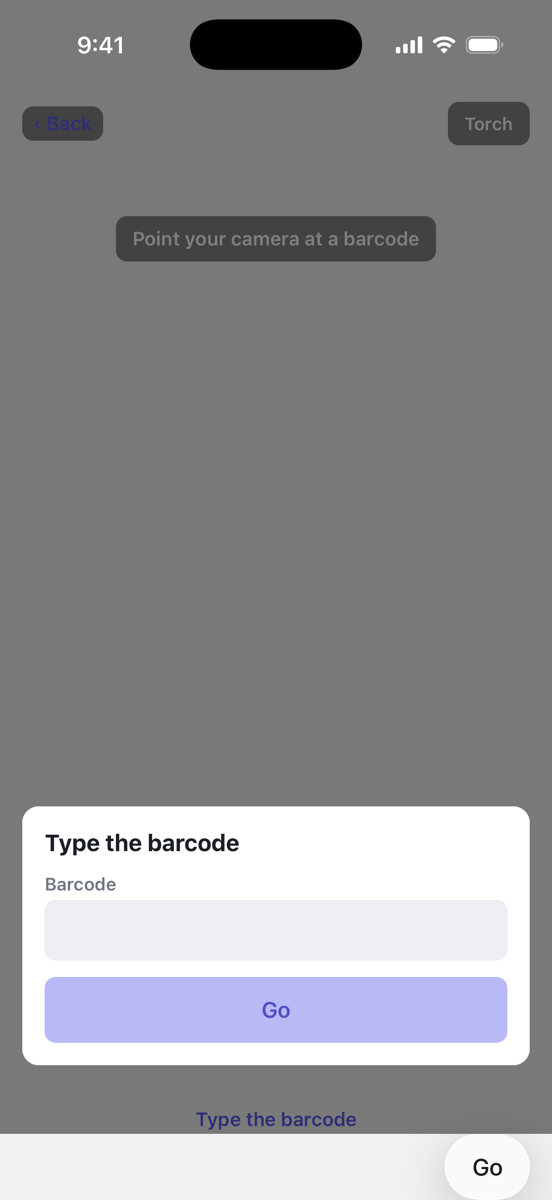
Use Torch in the top corner if the pack is in shadow. If the barcode will not read, tap Type the barcode, enter the digits under it and tap Go.
When the barcode is found
The portion sheet opens for that food, already set to the pack's serving where we have one. Adjust the quantity or measure if you need to, then tap Add.
When it is not in Foodzone yet
You see Not in Foodzone yet. Tap Suggest this food to add it with two photos of the pack. It goes into your diary straight away and joins the database for everyone once a reviewer has checked it. See Suggest a food and earn rewards.
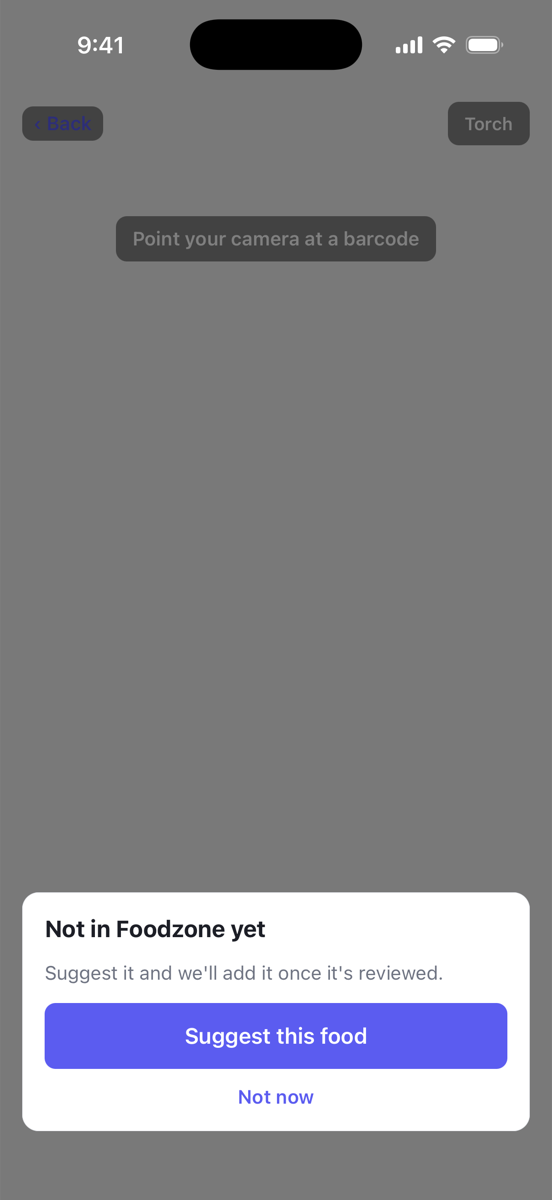
Tap Not now to go back to search instead.
When someone else has already suggested it
You see Already on the list. Someone has suggested this product and it is being reviewed. New foods usually land within about a week.
If you have the pack handy, tap Add a photo to help. Your photos go to the reviewer alongside the original suggestion and help it get accepted sooner.
If the camera will not open
If you turned camera access off, the scan screen shows Camera access needed with an Open Settings button that takes you to the phone's settings for Foodzone. You can always tap Type the barcode instead.