The daily summary
At the top of the diary, the Macros cards show energy, protein, carbohydrate and fat for the day against your targets. If your food database has food groups, a Food groups row shows serves. Under those, one thin bar appears for each nutrient you have chosen to track.
Tap any card or bar to open its detail sheet. The sheet shows how much you have had against your target, and lists the day's foods under Sources with how much each contributed.
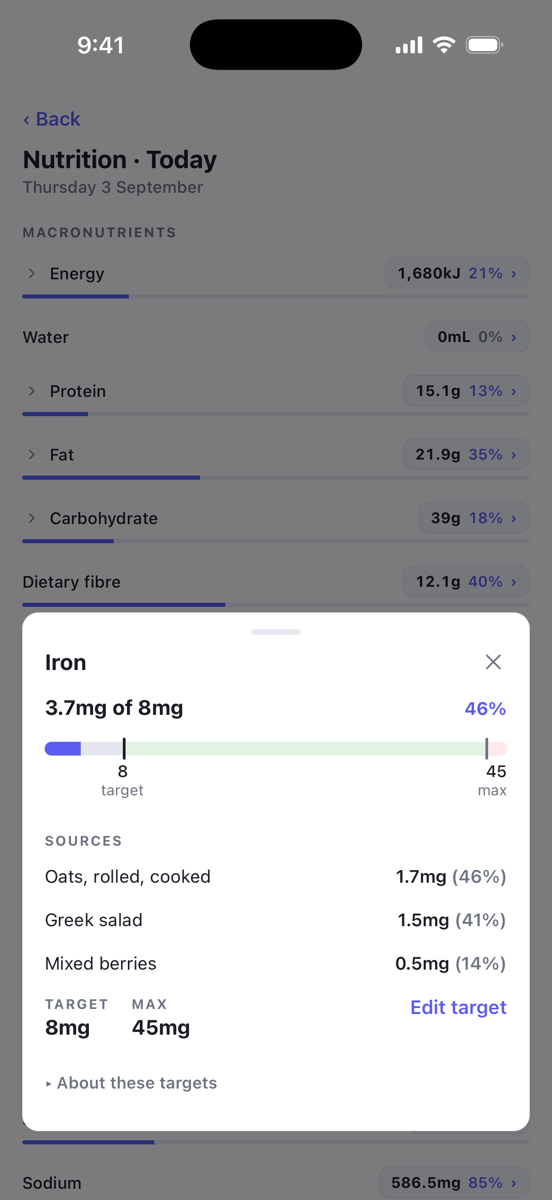
If you see Finish your profile to see your daily targets, open You, then Profile, and fill in your details. Targets are worked out from them. See How targets are worked out.
The full breakdown
Tap Full breakdown on the summary to see every nutrient for the day, grouped into Macronutrients, Minerals, Vitamins, Food Groups and Other. Each row shows the amount and the percentage of your target. Rows with a chevron expand to show their parts, for example the individual fats under Fat.
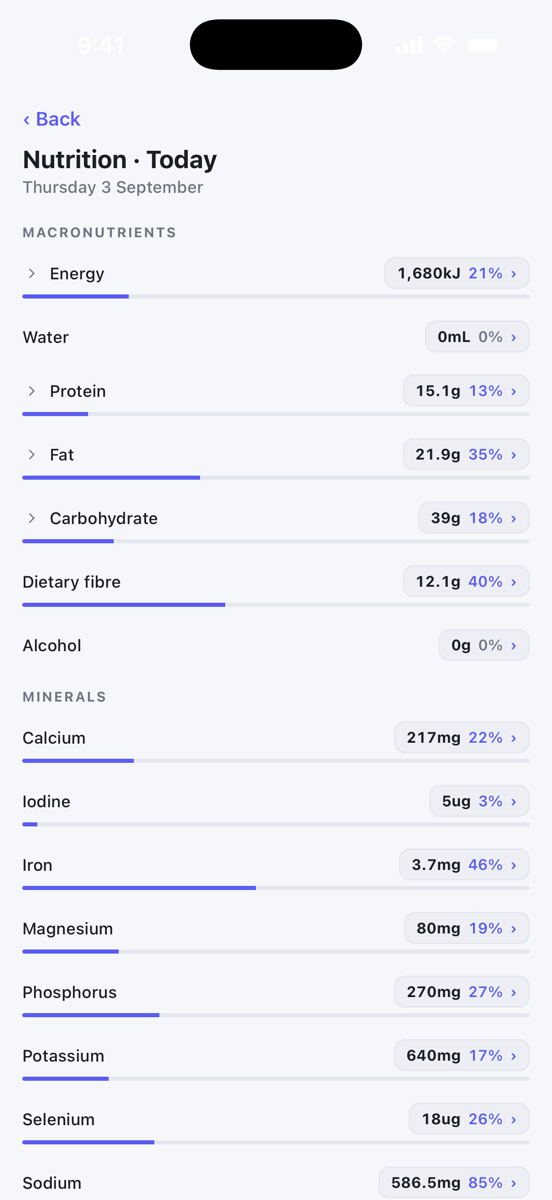
At the bottom, Activity & weight shows the day's exercise energy and any weight you logged.
Choose what you track
Tap Targets on the summary, or open You, then Targets. The hub has Macros, Food groups where your database supports them, and Nutrients.
- Macros lets you set energy, protein, carbohydrate and fat as grams or as a percentage of energy. A line underneath shows how close your targets are to 100% of your energy.
- Nutrients lists every nutrient in your food database with a Target and Max. Greyed values come from your profile. Turn on Custom to set your own figures, and turn on Show to put that nutrient on the diary summary as a bar.
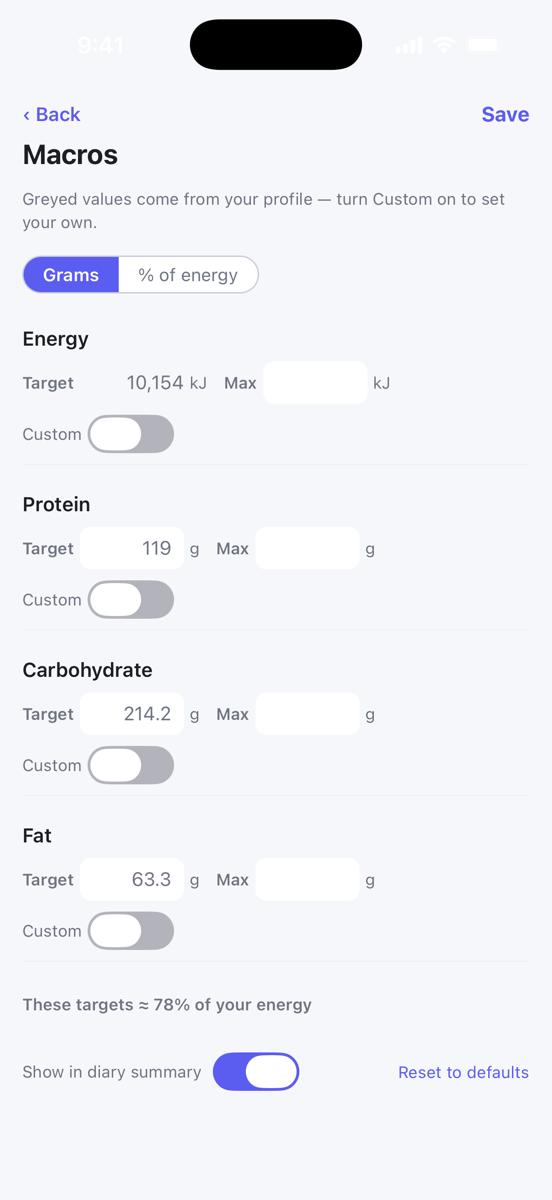
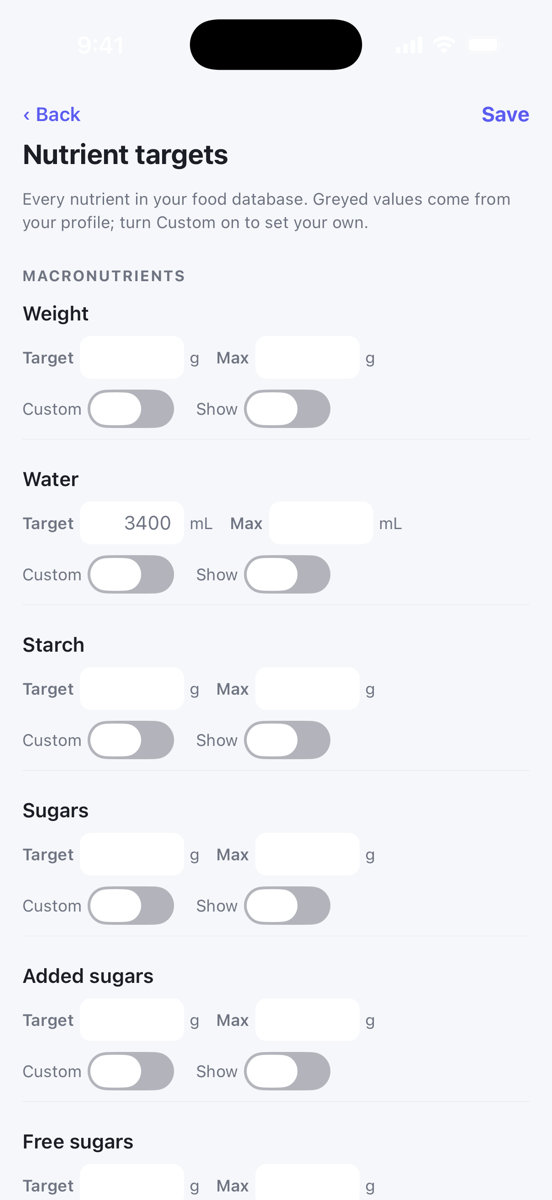
Reset to defaults at the bottom of each screen clears your custom figures. You can also change a single target from its detail sheet with Edit target.
Energy units
To see calories instead of kilojoules, open You, then Profile, and change Energy units. This changes how figures are shown everywhere in the app. Nothing you have logged changes. The same setting applies on the website — see Choose kilojoules or calories.
See Nutrient reference values for where the default figures come from.