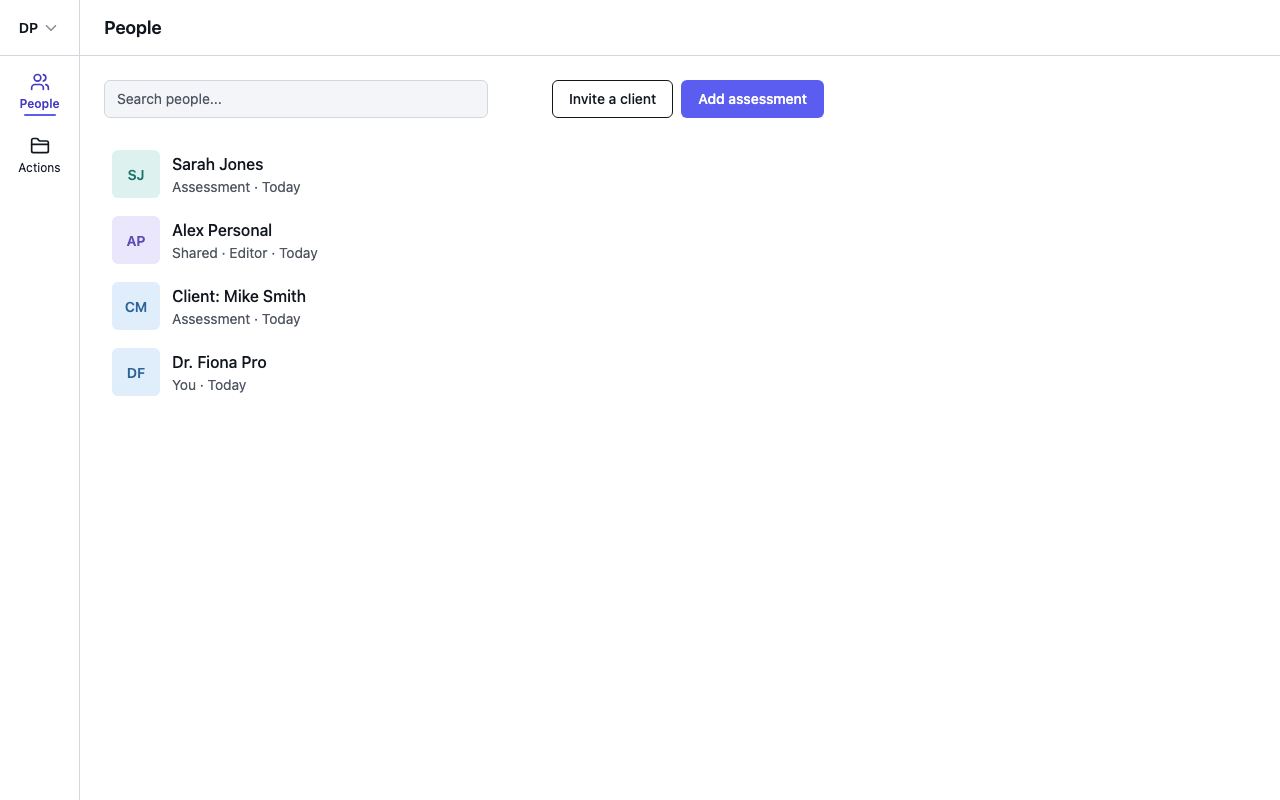
On a Professional or Team plan, everyone you work with is listed on the People page. Each person gets there in one of two ways.
Which one to use
| Assessment | Shared diary | |
|---|---|---|
| Who enters the food | You or a team member | The person themselves |
| Does the person need a Foodzone account | No | Yes, a free one |
| Who owns it | Your practice | The person, who can stop sharing at any time |
| Good for | Entering a food record or recall you collected on paper, by phone or in a consult | Ongoing tracking between appointments |
You can mix them: some people as assessments, others sharing their own diary.
Add an assessment
- Open People and select Add assessment.
- A dialog titled Complete profile opens. It is for the person you are assessing, not for you. Enter their details: Foodzone uses sex, date of birth, height, weight and activity level to work out their nutrition targets.
- Select Save. You land in that person's diary, ready to enter food.
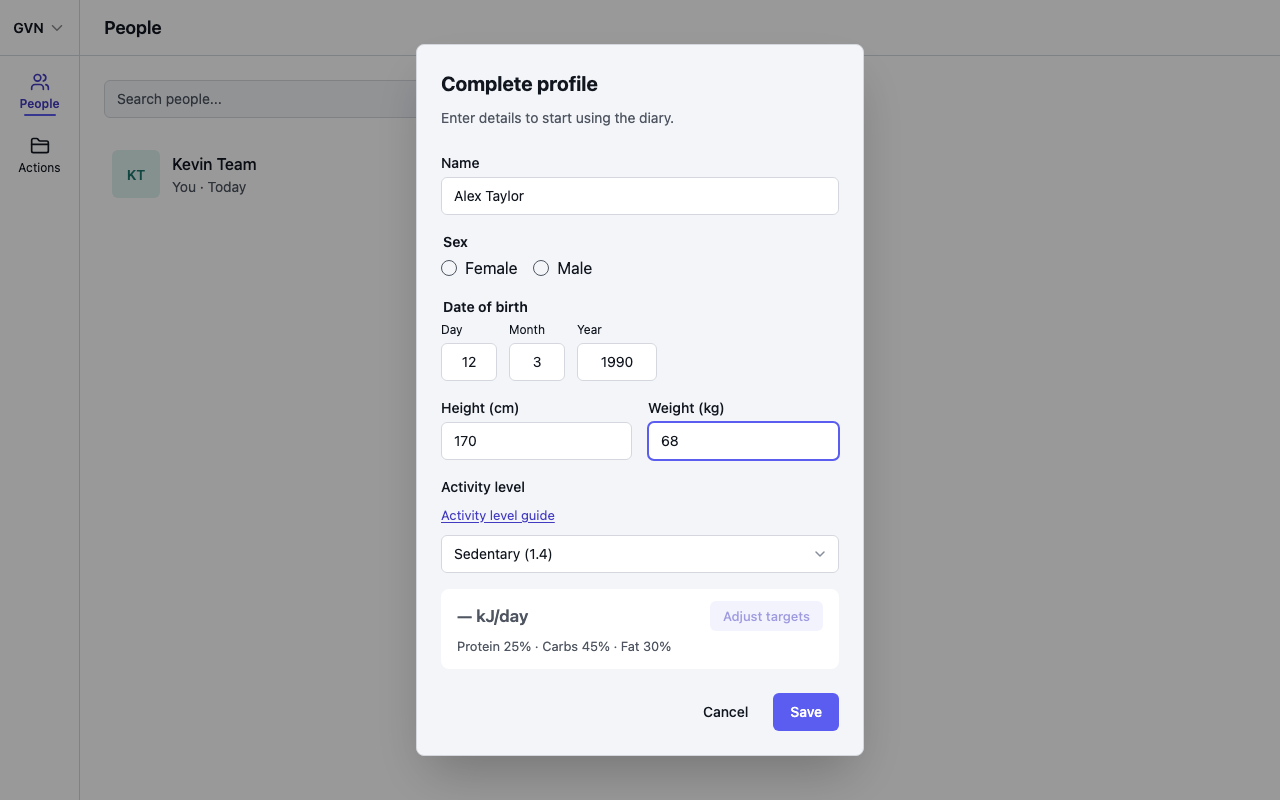
Make one assessment for each person. To come back to it, select their name on People.
On a Team plan, every team member sees every assessment. Make sure you are in the team, not your own account, before you add one — see Join a team.
Have someone share their diary
The person makes a free Foodzone account, logs their own food, and shares their diary with your practice. The easiest way is your share code — see Invite clients with your share code. What the person does is in Share your diary with a health professional.
A team member is not a client. To give a colleague access to your clients, invite them to the team from Settings — see Set up and run a team. Sharing a diary only shows you that one person's diary.
The food database
Every assessment and every diary has its own food database. A new assessment starts on your practice's default; a shared diary uses whatever the person chose. To check or change it, open the diary, select Profile, and look for Food database under Preferences.
The first time an owner or admin adds an assessment, Foodzone may ask which food database new assessments should use, offering Australia and the one the practice has been using. For any other database, select Cancel and set Default food database in Settings first. See Choose a food database.