Change a portion
Tap any food, exercise or biometric row in the diary. The edit sheet shows the same Quantity and measure chips as when you added it, with Macros updating as you change them. Tap Save when you are done.
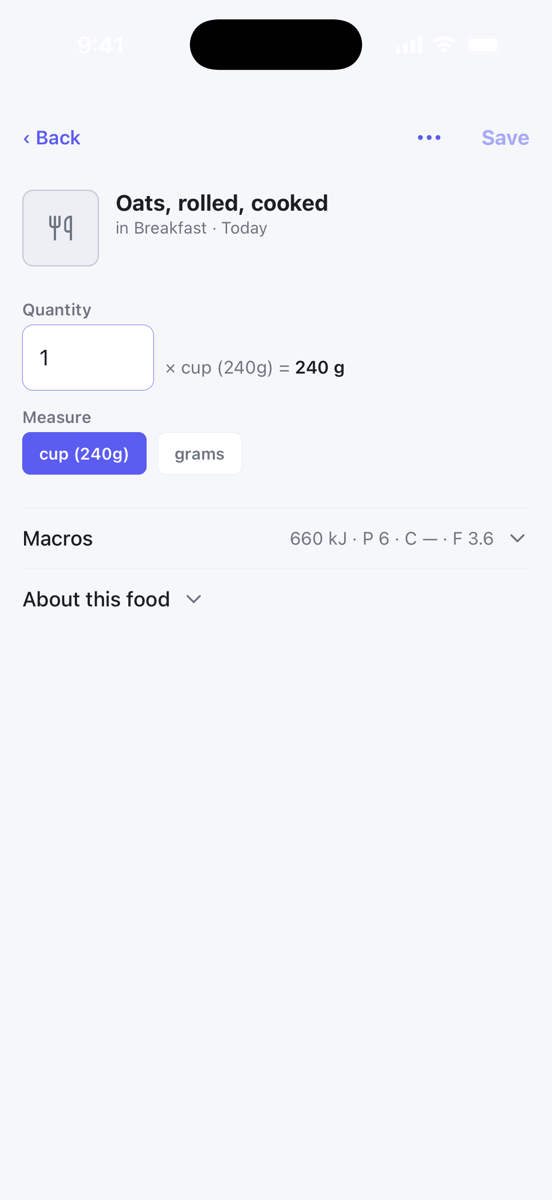
The edit sheet changes the portion only. To put an item in a different group or on a different day, add it again where you want it and delete the original.
Delete with a swipe
Swipe a row to the left. A red strip with a bin appears behind it. Swipe past about half the row and let go, and the item is deleted. A shorter swipe springs back.
Deleting a single item happens immediately. There is no undo, so check the row before you let go.
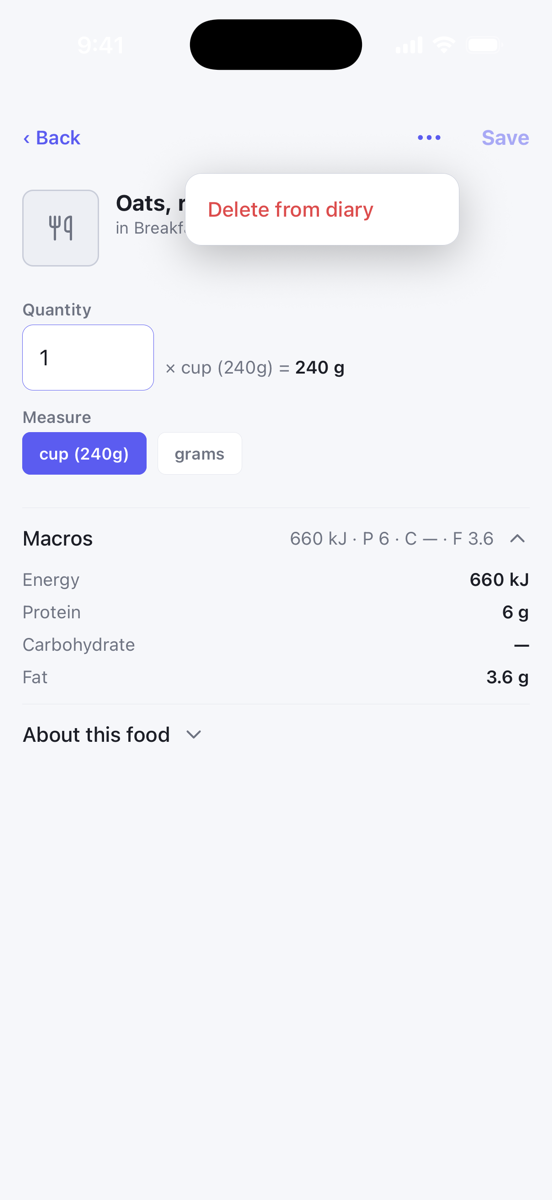
You can also delete from the edit sheet: tap the ⋯ menu and choose Delete from diary.
Select several items
Long-press any row to start selecting. The header changes to show how many are selected, and each group heading gains a Select all checkbox. Tap rows to add or remove them. The bottom bar becomes three actions:
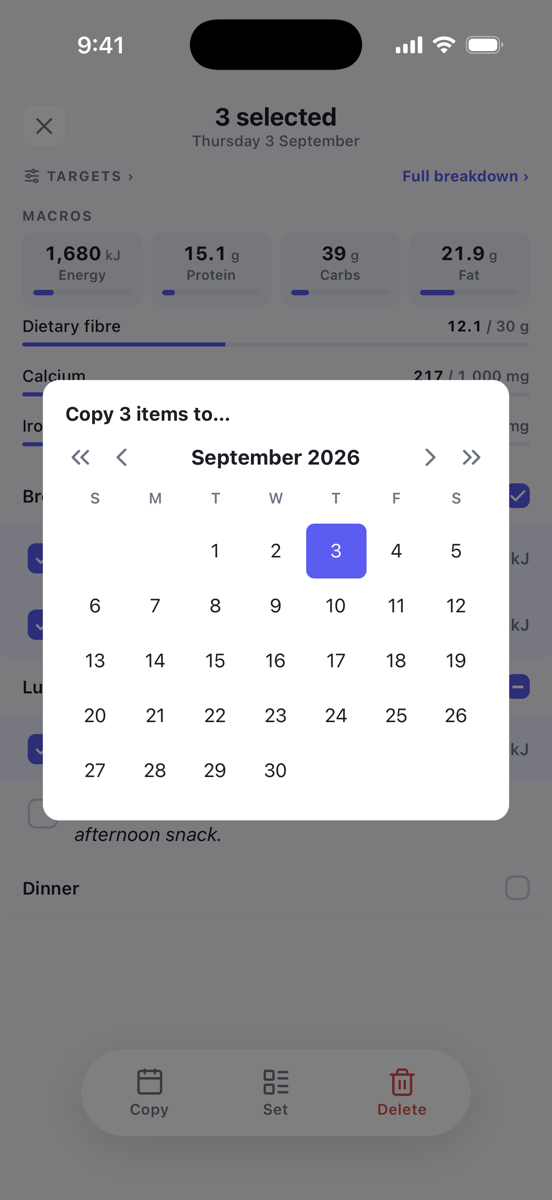
- Copy opens the calendar. Pick a day and the selected items are copied there. The originals stay where they are.
- Set turns the selected items into a saved set that appears in search under Sets. Give it a name and tap Create set. Only foods, recipes and exercises can go into a set. See Bundle actions into sets.
- Delete removes the selected items. With two or more selected the app asks you to confirm first, because this cannot be undone.
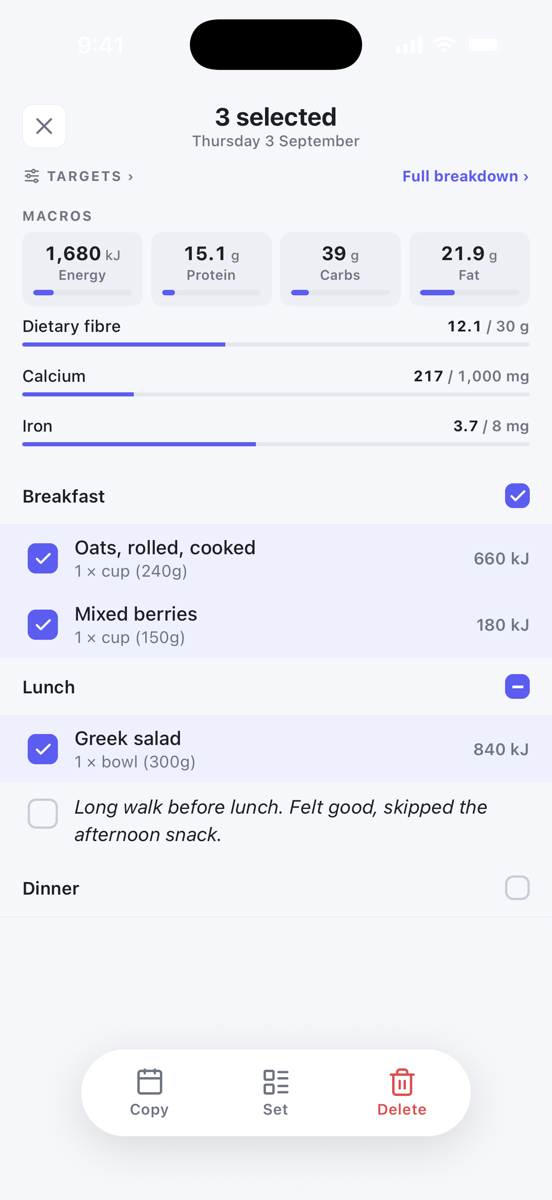
Tap the ✕ in the header to leave selection mode.