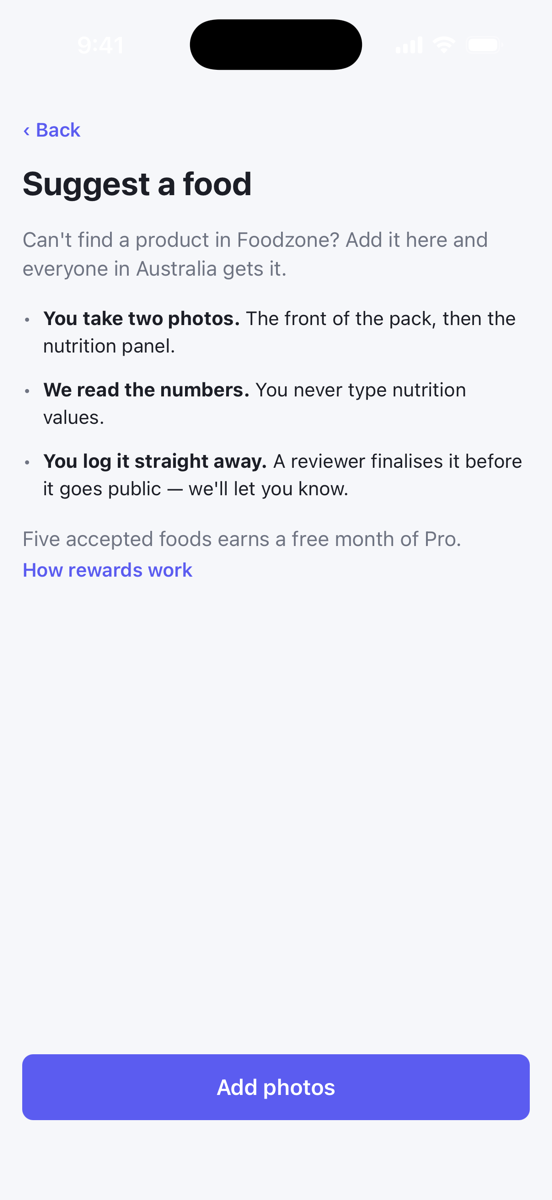
Can't find a product in Foodzone? Suggest it from the app and everyone in Australia gets it once a reviewer has checked it. You never type nutrition values. You photograph the pack and we read the numbers.
Suggesting is available on the Australia food database.
Start a suggestion
There are three ways in:
- Scan a barcode that is not in Foodzone yet and tap Suggest this food.
- Search for a food, and when nothing matches tap Suggest a missing food.
- Open You, then My contributions, and tap Suggest a food.
The first time, a short Suggest a food screen explains the steps. Tap Add photos to begin.
Take the photos
The Photos screen has four slots: front, nutrition, ingredients and more. Tap the round shutter to fill the selected slot, and the selection moves to the next one.
- Front of pack: name and brand, straight on.
- Nutrition panel: fill the frame and keep it straight. If there is no panel, photograph the back label anyway.
- Ingredients list: often printed somewhere else on the pack. Find it and fill the frame.
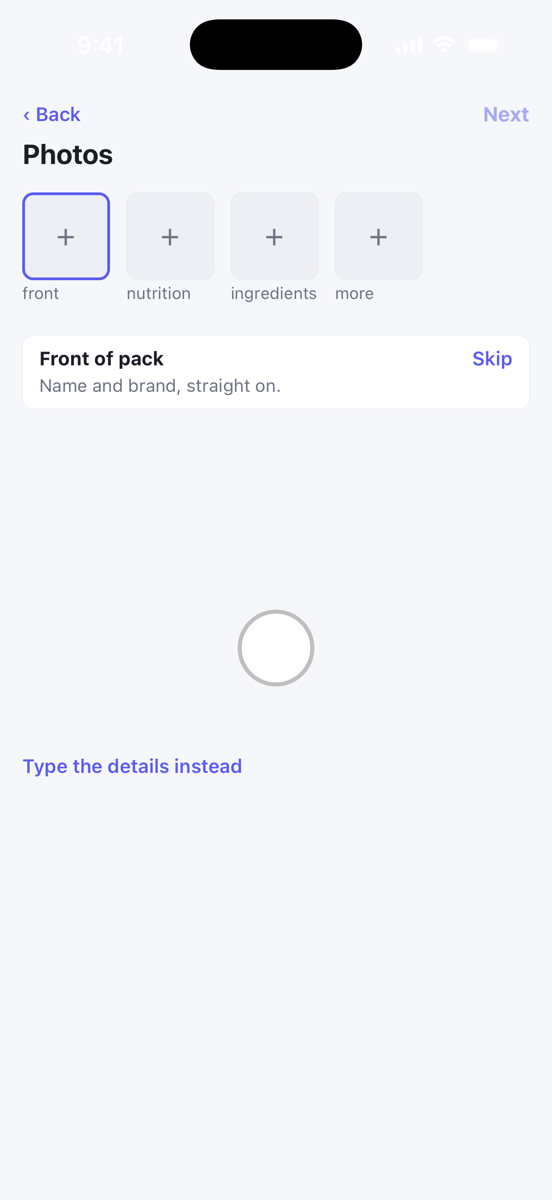
Only the front photo is required. Tap Skip on any slot you cannot photograph. Keep people out of shot. Tap Next when you are done.
If you would rather not use the camera, tap Type the details instead. A label photo is more accurate and gets approved faster, so use photos when you can.
Check the reading and finish
The next screen fills itself in while you watch:
- Name and Brand appear from the front photo. Correct them if the reading got them wrong.
- The nutrition values card shows what we read from the label, per 100 g, per 100 mL or per serve. If anything looks off, tap Not right? Edit the values.
- The ingredients card shows the ingredients list and any directions from the pack.
- Add a note if there is something the reviewer should know.
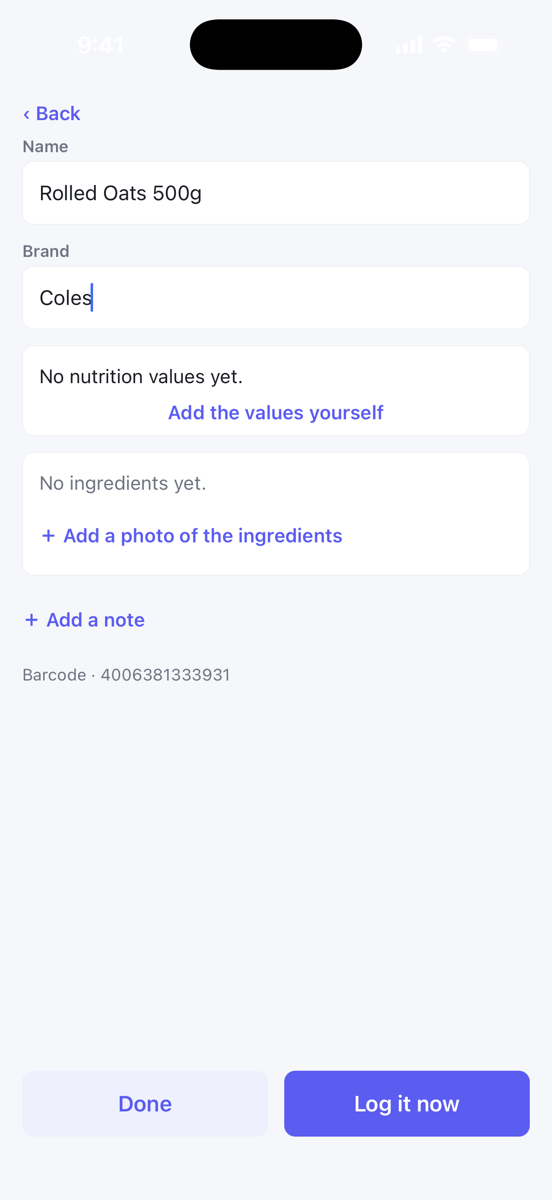
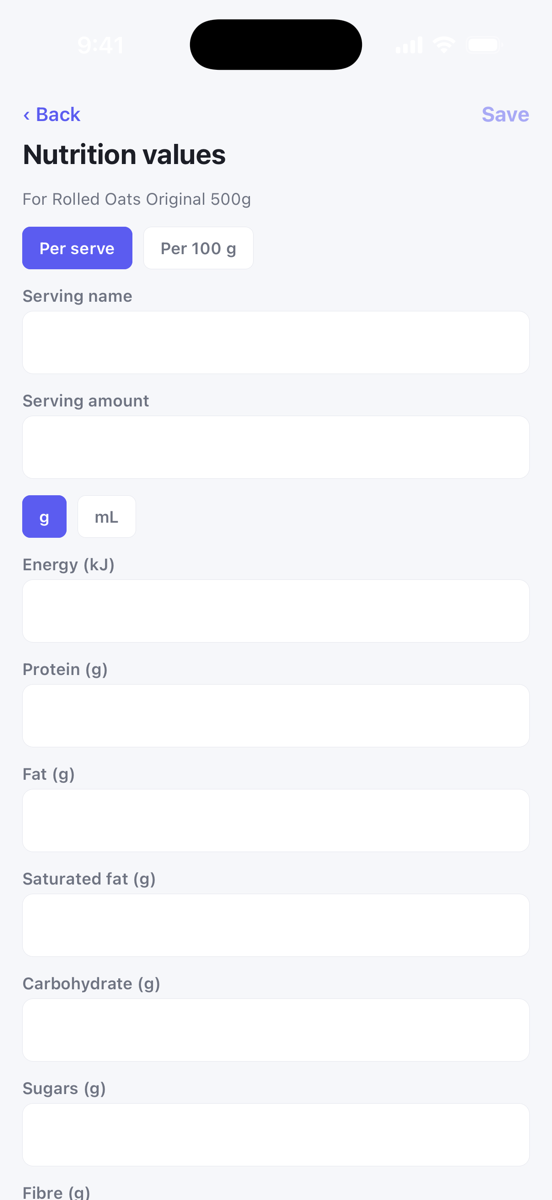
If the label could not be read, you see Add the values yourself. That opens the Nutrition values screen where you type the energy, protein, fat, saturated fat, carbohydrate, sugars, fibre and sodium from the pack, and More nutrients if the label lists them. Energy is the only value that must be filled in.
Finish with one of the two buttons at the bottom:
- Log it now sends the suggestion and opens the portion sheet so you can add it to today's diary immediately.
- Done sends the suggestion and returns to the diary.
While it is being reviewed
You can log the food in your own diary right away. Only you, and anyone you share your diary with, can see it until it is accepted. On its portion sheet, About this food shows Being reviewed.
Every suggestion is checked by a reviewer before it goes public. New foods usually land within about a week.
My contributions
Open You, then My contributions, to see everything you have suggested and where it is up to:
- In review: sent and waiting on a reviewer.
- Needs info: the reviewer has a question. Tap the row to read it, Retake photos if that is what they need, write a Reply and tap Send. A suggestion with no reply after 30 days is closed.
- In Foodzone: accepted and public.
- Not added: the reviewer could not accept it.
- Already in Foodzone: the product was already in the database.
If we could not read your label, the row shows Add the values so you can type them in. If we did read it, it shows Check the values.
You also get an email when a reviewer accepts your food or needs more information.
Rewards
Accepted foods earn you free time on Pro:
| Accepted foods | You get |
|---|---|
| 5 | 1 month of Pro |
| 25 | 3 months of Pro |
| 100 | 12 months of Pro |
The My contributions screen shows how many of your foods have been accepted and how many more you need for the next rung.
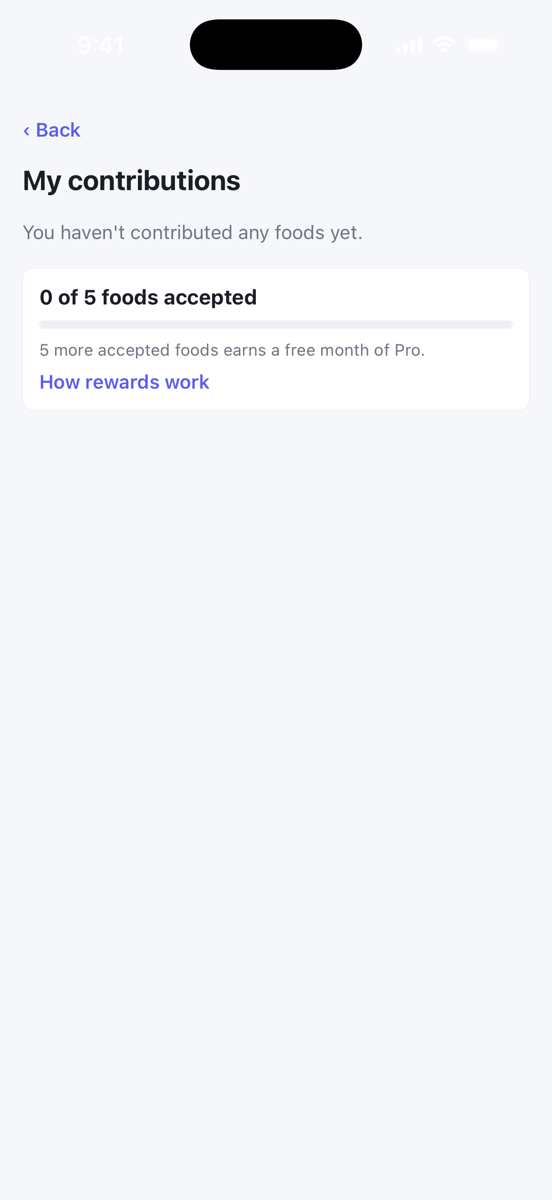
Only new foods you suggested that were accepted count. Adding a photo to a food, suggesting an edit to one, reporting a wrong barcode, or a suggestion that turns out to be a duplicate all help the database but do not count towards rewards.
Free months are applied automatically, with nothing to enter. If you are on a paid monthly plan they come off your next bills. If you are on the free plan, on a team, on annual billing or in a trial, the months are banked and applied when your plan next qualifies. See How rewards work for the details.
Help fix a food that is already in Foodzone
On any catalogue food's portion sheet, tap the ⋯ menu:
- Add a photo if the food has no picture, or a poor one. One clear photo of the front is enough. Add the nutrition panel too if it is readable. You can send up to three.
- Suggest an edit if something is wrong. Choose a reason, for example Nutrition looks wrong, Serving size wrong or missing, Name or brand wrong or outdated, Barcode brings up the wrong food or Duplicate of another food. Add a photo of the label or pack, or a note explaining the problem, and tap Send.
What becomes public
Suggesting a food is the one part of Foodzone where what you send becomes public. Once a reviewer has checked and cleaned them up, we publish the food information and the product photos. We do not publish your name. Location data is stripped from every photo. Nothing from your diary, your custom foods or your recipes is included. Label photos are sent to our AI provider to read the nutrition panel. See Privacy & terms on the You tab for the full terms.